
Video transcript
0:00 Jumping into Wagepoint. On the settings side, when you have the Plus plan enabled, one of the first things you’ll see is the ability to create a time off policy. On the policy side, like I said, you can create different policies. You can see here I’ve got vacation, sick, and personal time. And you’ve got lots of flexibility in how you actually create those policies. You can name it, set an effective date, and add the jurisdiction. Then you have lots of choices on how time off is granted. Is it unlimited? Is it an upfront lump sum, or is it accrued throughout the different pay periods throughout the year?
0:45 Then you set the annual allowance. You can set different levels based on different criteria as well, and then a start date. You also have the flexibility of carryover and limits and rules. So there’s tons of flexibility to set up the policy in the way that works for yours or your customer’s needs. From there, it’s as simple as assigning the policy to your different team members, and you can assign different policies to different folks. Here you can see Emma has sick and personal leave, while James and Jason only have the sick leave policy applied. You can view this in a couple of different places. You can view it in the settings under time off. You can also view it from the employee profile on your people list, where you can see the specific policy that’s been assigned to them.
1:30 Keeping track of balances also becomes super simple. There’s a single view across all of your employees and the policies assigned to them, showing how many hours they have, how many hours they’ve used, and how many hours are remaining in any of their policies for the year. So as an administrator, we’re trying to make it really easy for you to track all of those different things.
The next big thing we heard, working with some of our team and building it, was that we want to make sure we have no pending time off requests before we run a payroll. If that’s the case and you go to run a payroll, you’ll see a screen like this that prompts you to take a look at those pending time off requests and review them before you process your payroll.
2:30 Reviewing them is pretty simple. You can take a look at the different submissions that are there, and from that screen you can quickly review, approve, or reject them. And then you’re good to go. They’re all set from there. On the employee side as well, we wanted to make sure it was really simple for your team to view time off. They can view their balances in the My Wagepoint app or in their employee portal. They can see how many hours they’ve earned, what they’ve used, and any pending time. One thing we’ve heard a lot of great feedback about is the projected year-end balance. I know a lot of folks, even at Wagepoint, I have to chase my team all the time to make sure they’re using their time off before the year ends and they lose it. This gives them an easy view to see that themselves and manage it, so we’re not chasing them all the time.
3:30 Submitting a request is also super simple. It’s exactly what you would expect. You go in, there’s a calendar picker, you pick the days you want off, you pick the policy it’s applied to, you set the hours on those specific days, and you submit the request, and off it goes for approval. Again, this is the employee view once their submissions are in, so they can quickly see, “Is my status pending, or has this been approved yet?” and follow up with their approver accordingly.
4:00 And then a new feature, if you’ve already enabled the Plus plan, that just shipped today that we’re super excited about, is the ability to view your time off on a calendar across your entire team. As you’re reviewing time off requests, you can easily see who’s already off across the business. Or if you’re trying to figure out who’s in today and who’s not from the team, there’s a simple calendar view to keep track of all of that. So that is the high level on time off.
4:30 Next up is our timesheets, so timesheets and time tracking. You have the option to turn timesheets on for individual employees, and what the Plus plan brings is the ability to clock in and clock out. Using the My Wagepoint app, they can clock in for the day and clock out as needed. The other thing we’ve built is the ability to add worksites, and worksites are geofenced locations that your employees can use to confirm they clock in and out from the right place. We know it’s easy to fudge a timesheet up and down a few minutes, and your worry as an owner might be that they’re checking in up the street instead of on site as they’re supposed to. This gives you the ability, and peace of mind, to track that.
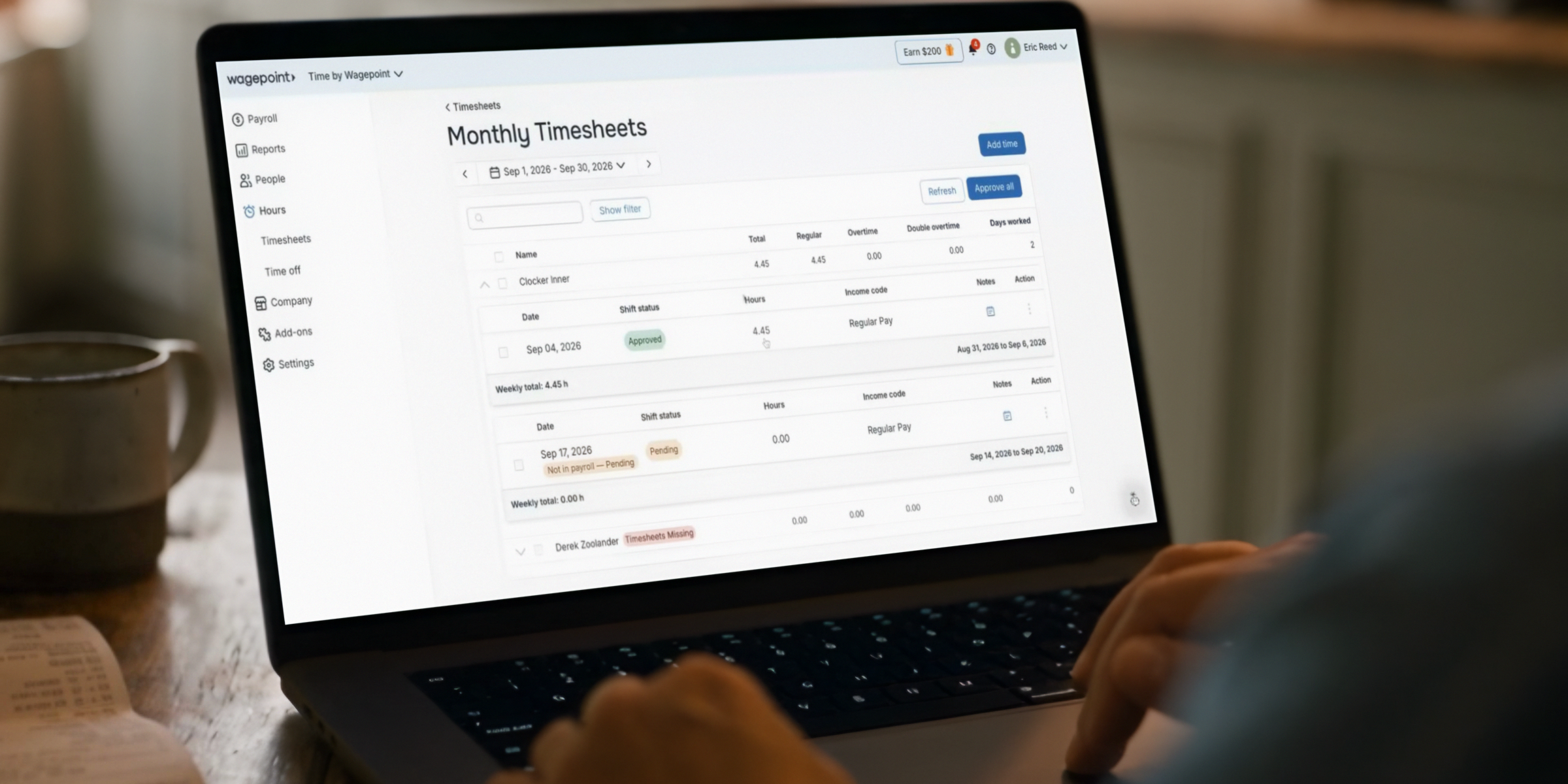
5:30 Setting up worksites is super simple. It’s a map-based interface. You pop the address in. You can assign specific employees to different worksites if you have your team going to different worksites. Once they’re there, the team can choose the different worksites from the app to clock in and clock out of, based on what they’ve been assigned to. Once they’ve logged their hours for the week, you get a weekly timesheet to review. You can click in on that view to see the specific day-by-day details of each employee, and then you can approve, edit, or reject the hours they’ve submitted.
6:00 If you want to go even further, you can dive deeper. In this case, we can see that this employee did clock in in the right place, but they actually clocked out out of range. You can see that directly on the map as well. They were down the street. They forgot to clock out when they left today and then hit it on their drive home. So you may want to discuss editing that timesheet with them.
If you need to add or edit hours for your team, you have a full view here where you can do that and change things. You can do that based on hours worked or actual time in and time out as well.
And then once your timesheets are approved, they flow into the appropriate payroll from there. So again, no chasing day sheets, no trying to find out who left what in the truck this week and what hours they worked. You approve, and it flows right into your payroll from there.
Get all that Plus has to offer today at wagepoint.com.