
T4s, T4As, and Relevés — what do they have in common, other than the fact that T4A and Relevé rhyme? Or, that you could easily refer to these things as “T4-ehs?” for all the confusion they can cause.
Don’t worry, this article is designed to answer your most burning questions about these forms and help you navigate the process with confidence.
What are T4s, T4As and Relevés?
In the simplest terms, these documents are used by employers to report the wages and taxes included in the business’ payroll and paid to each employee or contractor within a given calendar year.
They are essentially the “holy grail” of payroll documents. They’re sent to your employees, your contractors, and the Canada Revenue Agency (CRA) or Revenu Québec (RQ), by the last business day of February each year.
While accuracy is key, remember that getting it right ensures a smooth experience for both the government and your workers. Beyond building trust with your team, being proactive helps you avoid the extra work of correcting mistakes or the risk of late-filing penalties.
Who gets a T4, T4A or RL-1?
T4s are given to employees and the CRA.
If an employee worked in more than one province, a separate T4 is required for each province they earned income.
T4As are given to independent contractors and the CRA.
If the contractor worked in more than one province, a separate T4A is required for each province they earned income.
Relevé 1s (RL-1s) are given to workers in Quebec and submitted to Revenu Québec (RQ).
Important note: Relevé 1s are an additional item for Québec-based employees and contractors. Employers must also issue federal T4s or T4As.
Understanding payroll year-end
These forms are all part of a process called payroll year-end. The end of the calendar year — and the last few months leading up to it — is when businesses close the books on the previous year and complete all required compliance reports. T4, T4A, and Relevé slips are the most well-known parts of this process.
Year-end is when employers must reconcile their payroll amounts. This is when you add up what you’ve paid in wages and programs, like Employment Insurance (EI), the Québec Parental Insurance Plan (QPIP), the Canada Pension Plan (CPP), or the Québec Pension Plan (QPP) and report them to the CRA or RQ.
This guide covers the basics of these forms and shows how automating calculations and remittances with payroll software, like Wagepoint, can make creating these forms much easier each year.
What is a T4?
A T4 Statement of Remuneration Paid is an information slip that shows how much money an employee earned and how much was withheld and remitted to the government for tax purposes. It is also the form that your employees use to file their income taxes each year.
Requirements for T4 slips
Every year, T4 slips are required for:
- Employees you’ve paid more than $500.
- Any deductions for CPP or QPP contributions, EI premiums, Provincial Parental Insurance Plan (PPIP) premiums, or income tax.
- Every employee, whether they’re current, inactive, or terminated.
- Current employees with taxable group term life insurance benefits of any amount (even under the $500 threshold above)
Reminder: You need to create a T4 for every province and territory in which the employee earned income.
What’s included in a T4?
Generally, all taxable income, allowances, benefits, deductions, and pension plan contributions are included. Here’s an overview of the main boxes:
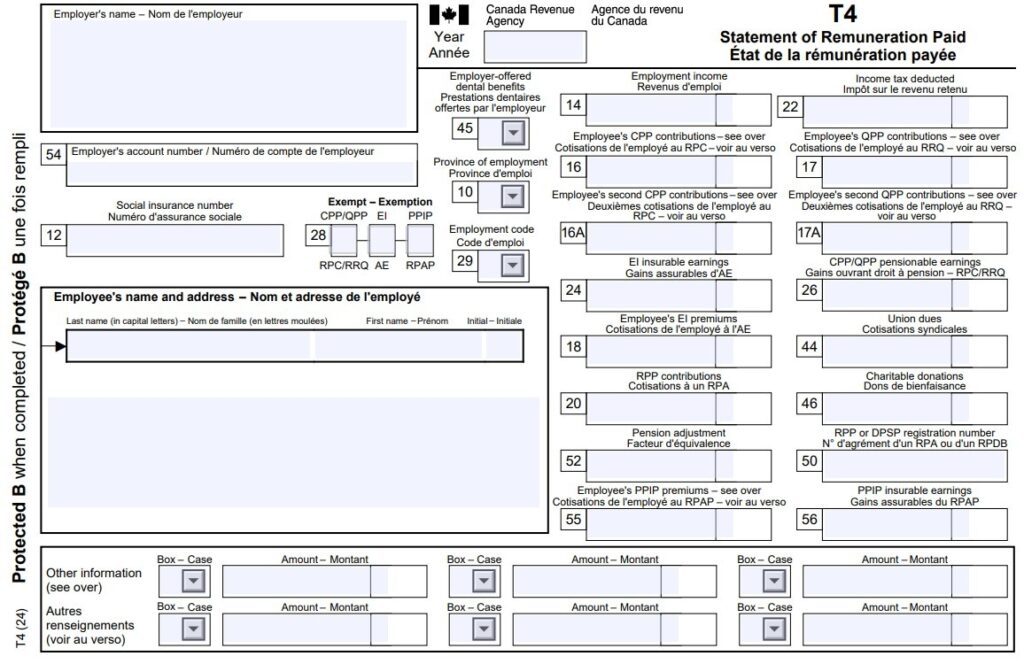
Employer’s name
Ensure you spell this exactly as it appears on your business registration forms.
Employee’s name and address
This field must be correct to match the CRA’s system. Enter the employee’s last name followed by the first name and initials. Do not include professional or courtesy titles (Mr., Mrs., etc.).
Year
The calendar year (January–December) for which you are reporting income. It’s the year in which you paid the wages to the employee.
Box 10 — Province of employment
In most cases, this is the province or territory where the work takes place. For hybrid or remote work agreements, check the CRA’s specific guidelines for determining the province of employment.
Box 12 — Social Insurance Number (SIN)
A mistake in this nine-digit code will cause flags and delays. To avoid this, verify your employee’s SIN visually when you hire them.
Box 14 — Total employment income
This box is the “Big Kahuna” number on the T4. It includes the overall total for all income paid to the employee in the calendar year, including wages, bonuses, commissions, and vacation pay.
Box 16/17 — Canada Pension Plan (CPP) or Québec Pension Plan (QPP) contributions
Enter the total CPP contributions withheld in box 16. If you withheld QPP contributions, you will put that total in box 17.
These amounts represent only the employee’s contributions — not the employer’s portion.
CPP has an annual maximum contribution limit and the amount reported in this box must not exceed that limit.
If your employee is exempt from contributing to the CPP program and you didn’t deduct CPP from their pay, leave this box blank. This exemption status must also be indicated in Box 28.
Box 16A/17A — Employee’s Second Additional CPP Contributions (CPP2) or QPP Contributions (QPP2)
These boxes report secondary contributions made by employees where applicable. CPP2 also has an annual maximum contribution limit to be aware of.
For a full guide on CPP2 check out this link: A small business guide to CPP2
Box 18 — Employee’s Employment insurance (EI) premiums
This box records the amount of EI that you withheld from the employee’s pay, up to the annual maximum.
If your employee is exempt from contributing to the EI program and you didn’t deduct EI from their pay, leave this box blank. This exemption status must also be indicated in Box 28.
Box 20 — RPP contributions
This box is the total (including installment interest) that the employee paid into a Registered Pension Plan (RPP). If the employee didn’t contribute or participate, this is left blank. This box is for direct contributions RPP only, not amounts moved from a registered retirement savings plan (RRSP) to an RPP or employer contributions to an employee’s RRSP.
Box 22 — Income tax deducted
This box shows the total amount of income taxes deducted from the employee’s earnings, including federal and provincial (except Québec) and territorial income taxes.
Box 24 — Total EI insurable earnings
This box includes all applicable insurable earnings up to the maximum EI allowable earnings for the year.
Box 26 — CPP/QPP pensionable earnings
This box is the amount you used to calculate your employee’s CPP/QPP and CPP2/QPP2 contributions. This is the amount you used to calculate your employee’s CPP/QPP and CPP2/QPP2 contributions. Notable exceptions include employees who are under 18 and those who are over the age of 70.
If the employee had no pensionable earnings and boxes 16 and 17 are blank, enter zero.
Box 28 — Exempt (CPP/QPP, EI and PPIP)
This box is to show exemption for CPP/QPP contributions, EI premiums and Provincial Parental Insurance Plan (PPIP) premiums for the entire reporting period. Enter an X into this box only if you didn’t withhold these amounts. You can leave it blank if you:
- Reported a retiring allowance with no other types of income.
- Reported more than 0 in Boxes 16, 17 or 26.
- Reported 0 in Box 26 and the employee filled out and gave you a Form CPT30.
- Reported 0 in Box 26 and the employee worked employment type C to O on the back of Form CPT20.
Box 29 — Employment code
This box is for workers with specific employment codes tied to their employment. Only enter a code if one of the following applies.
- 11 – Placement or employment agency workers
- 12 – Taxi drivers or drivers of other passenger-carrying vehicles
- 13 – Barbers or hairdressers
- 14 – Withdrawal from a prescribed salary deferral arrangement plan
- 15 – Seasonal Agricultural Workers Program
- 16 – Detached employee – Social security agreement
- 17 – Fishers – Self-employed
Note: For code 11, 12, 13 or 17, Box 14 should be left blank.
Box 44 — Union dues
Employers only fill in this box if you and the union have an agreement that the union will not issue separate receipts to employees. (Keep a copy of this agreement in your records.) This amount should only include what the employer deducted. It does not include initiation fees or strike pay.
Box 45 — Employer-offered dental benefits
Enter the related code into this box to indicate if you made dental care insurance or coverage for any dental services accessible to employees as at December 31 of the reporting year. This includes co-paid dental benefits, health spending accounts, and opt-in dental benefits.
These are the codes as outlined by the CRA:
- Not eligible to access any dental care insurance, or coverage of dental services
- Payee only
- Payee, spouse, and dependent children
- Payee and their spouse
- Payee and their dependent children
Box 46 — Charitable donations
In this box, you enter any amounts withheld for charitable donations to registered charities.
Box 50 — RPP or DPSP registration number
This is the seven-digit number used for your RPP or DPSP registration. If the employee participates in more than one plan, include the registration number for the plan with the largest pension adjustment (PA).
Box 52 — Pension adjustment (PA)
This box contains the amount (in dollars only) of a pension adjustment (PA) an employee has under a registered pension plan (RPP) or a deferred profit sharing plan (DPSP).
- If you have an employee that worked in more than one province or territory, report this amount proportionally in the T4s. If you can’t portion it, report it on only one of the T4s.
- If the employee participates in more than one RPP and or DPSP, calculate the amount using the total credits for all the plans.
- If an employee is on a leave of absence and is still accruing pensionable service or credits, you must report these credits — even if the employee has no employment income.
Leave this box blank if:
- The calculated PA is a negative amount or zero.
- The employee passed away during the year.
- The employee no longer accrues new pension credits in the year.
Special calculations may apply for employees who:
- Left your employment.
- Are on leave or returned from a leave of absence.
- Participate in a salary deferral.
- Work part-time.
Helpful resource: CRA Pension Adjustment Guide
Box 54 — Employer’s account number
Your 15-character employer payroll account number. (Note: This number should not appear on the copies you give to your employees.)
Box 55/56 — Employee’s PPIP premiums and insurable earnings
These report Provincial Parental Insurance Plan (PPIP) premiums and insurable earnings for employees who worked in Québec.
Codes — Other information
At the bottom of the T4, there are two rows of empty boxes and amounts. This is where you enter codes for “other” specific types of income that the CRA likes you to break down.
These boxes are not pre-numbered like the boxes at the top of the T4. Instead, you enter the appropriate codes and amounts. (Full list of T4 codes)
If you have more than six codes for one employee, you’ll use a second T4. However, you only need to include your identifying business information and the employee’s identifying information at the top of the second T4.
Some of the most common codes for the other information area in the T4 are:
Code 34 — Personal use of an employer’s car or vehicle
If you offer this benefit, use this code to note the amount here. This amount should also be included in Box 14.
Code 38 — Security options benefits
Use this code to document income from company stock (securities) or mutual funds trusts. This income is also included in Box 14.
For the 2025 filing year, CRA announced a new administrative policy, for the reporting of security options benefits and related deductions.
For your 2025 reporting period:
- Use codes 90, 91, and 92 — if you filed your slips before January 12, 2026.
- Use codes 38, 39, and 41 — if you file your slips on or after January 12, 2026.
For the 2026 calendar year and beyond:
- You will only use codes 38, 39, and 41 for all security options reporting and related deductions.
Code 40 — Other taxable allowances and benefits
This is where you document taxable benefits and allowances (subject EI and CPP/QPP) — that you didn’t include anywhere else in the top boxes on the T4, other than Box 14 (Total Employment Income).
Code 42 — Commissions
It may be rather shocking to find that this is where you list commissions. This income is also included in Box 14.
Code 71 — Indian (tax-exempt income) – Employment
Report only tax-exempt employment income you paid to your employee who is registered, or entitled to be registered under the Indian Act using Code 71.
Code 94 – Indian Act (exempt income) – RPP contributions
For T4 slips submitted after 2024, only report RPP contributions relating to tax-exempt employment income you paid to your employee who is registered, or entitled to be registered under the Indian Act using Code 94.
Code 95 – Indian Act (exempt income) – Unions dues
For T4 slips submitted for the 2024 tax year and beyond, only report union dues associated with tax-exempt employment income paid to registered employees or eligible for registration under the Indian Act, using Code 95.
Where to find or calculate the amounts required to complete a T4:
If you’re using payroll software, you can find the information to fill out your T4s within the Payroll Register, a report that summarizes all your year-to-date amounts (YTD amounts). This is a fancy way of saying all the totals for wages, income tax, EI, CPP/QPP and other provincial/territorial taxes.
If you’re using Wagepoint and have run at least two (2) payrolls within the same calendar year, we’ll create and submit your T4s on your behalf at no extra charge.
Providing T4s to your employees
Canadian employers must provide slips by the last day of February (or the following business day if it falls on a weekend). While there are more ways than ever to distribute these forms, the CRA has specific guidelines you’ll need to follow to stay compliant.
This method is only allowed if you have written consent (either on paper or in an electronic format) from the employee. Because email isn’t inherently secure, the CRA is strict about this requirement to protect sensitive tax data.
Secure online portal
This is the most efficient and secure way to share slips. You can post T4s to a secure employee portal where they have access to view or print them.
Important note: You do not need to get express written consent to provide slips through a secure portal, provided the employee can easily access and print them. However, if an employee specifically requests a paper copy, you are still required to provide one.
Paper copies
If you’re going the traditional route, you must provide two copies to each employee, either in person or by mail. For security reasons, do not print your payroll account number (Box 54) on the copies you give to your employees. That number is for your records and the CRA only.
If you can’t deliver a T4 slip
Sometimes, a T4 is returned as undeliverable. If you know an employee’s address is incorrect, do not send the slip. Instead, follow these steps to stay covered:
- Document the details: Note why the slip wasn’t sent and what steps you took to find the correct address.
- Keep it on file: Store this documentation along with the T4 in the employee’s folder.
- File as usual: You must still include the undelivered T4 when filing the remainder of the employees forms with the CRA.
Pro tip: Suggest that your employees use the CRA My Account for Individuals portal. It’s a great way for them to retrieve their own copies of T4 slips and manage their tax information directly.
How Wagepoint handles T4s and their distribution
If you’re using Wagepoint, we make this part easy. Your employees can access their T4 documents through the same secure online portal where they find their paystubs. It’s a seamless experience for them and one less administrative task for you.
Filing T4s with the CRA
Starting January 2024, if you need to file more than five information returns (slips) for a calendar year, you are required to file electronically by either:
If you’re using Wagepoint, ensure you follow the proper year end steps and your year end forms will be filed with CRA and distributed to your employees securely with the click of a button.
What is a T4 Summary?
When you submit your T4s, you must also include a T4 Summary of Remuneration Paid. This is basically a top-level report totalling all the amounts your business listed on each of the employee T4s. If you have more than one Payroll Account Number, you have to submit one for each Payroll Account Number.
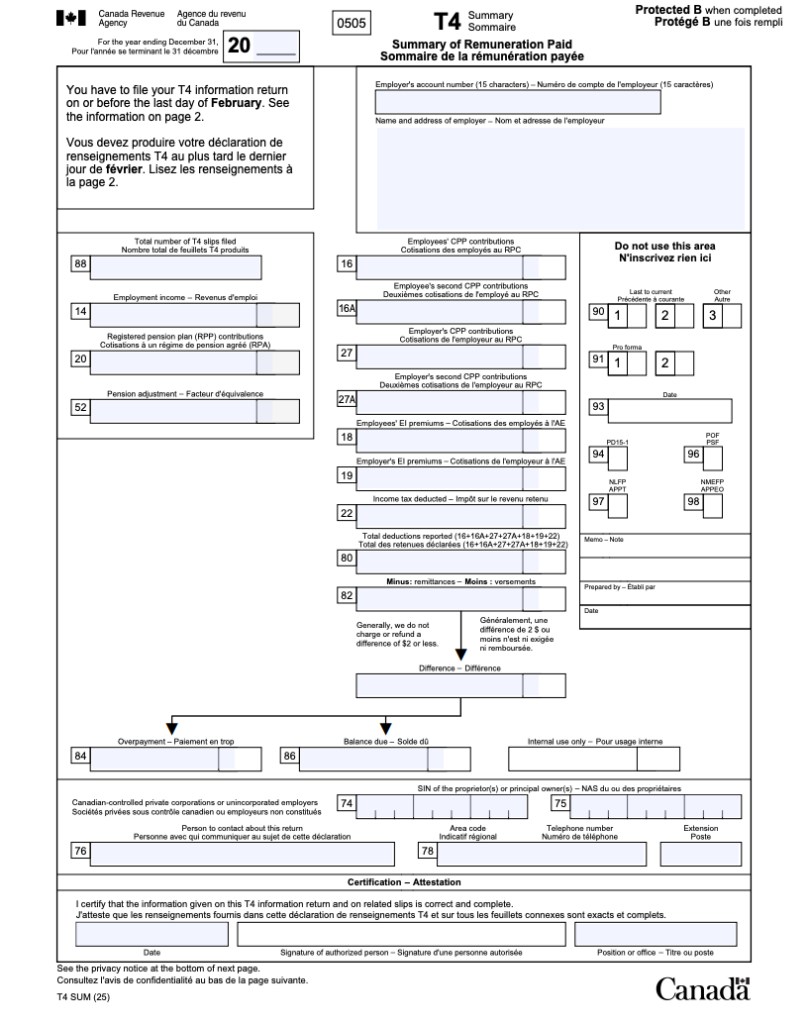
If you use Wagepoint, yep — you got it — we’ll calculate and send this information to the CRA for you.
T4 Summary balance due
A balance due on your T4 Summary often depends on when you generate the summary compared to when your December source deductions are paid. For most regular remitters (monthly), December source deductions are due to be paid till January 15 of the following year.
If you generate your T4 slips and summary before making that payment in January, the balance due will typically reflect the December source deductions owing. However, if the balance shown on the T4 Summary does not match the December source deductions or reconcile with your Statement of account for current source deductions, this may indicate an issue potentially triggering a Pensionable and Insurable Earnings Review (PIER) by the CRA.
What is a Pensionable and Insurable Earnings Review (PIER)?
A PIER report is CRA’s process of checking why the CPP contributions and EI premiums don’t add up to what you reported on the employees T4s. If something doesn’t add up, even by a small amount, the CRA may send you a PIER report.
For more information, check out this guide: How to avoid a PIER.
Amending or changing T4s
Amending or cancelling T4s depends on a few variables and each filing method has separate instructions. If you need to make amendments to T4s that have already been filed with the CRA, check out our guide: Everything you need to know about T4 amendments
Every day is year-end
In payroll, we like to say, “Every day is year-end.” Setting your payroll up correctly from the start makes the February deadline a breeze. Using software like Wagepoint automates these calculations and filings, so you can stay focused on what you do best — running your business.
Standard legal disclaimers
Someone’s gotta make the lawyers happy. (Yep, there’s something out there that’s even more painful than payroll, childbirth or gardening documentary marathons.)
The advice we share on our blog is intended to be informational. It does not replace the expertise of accredited business professionals or the responsibility of the business owner to ensure compliance.
To qualify for complimentary T4s with Wagepoint (included as part of your standard fees) — a business must run a minimum of two payrolls in the current calendar year.
Remittance and reporting capabilities within Wagepoint vary by location.